
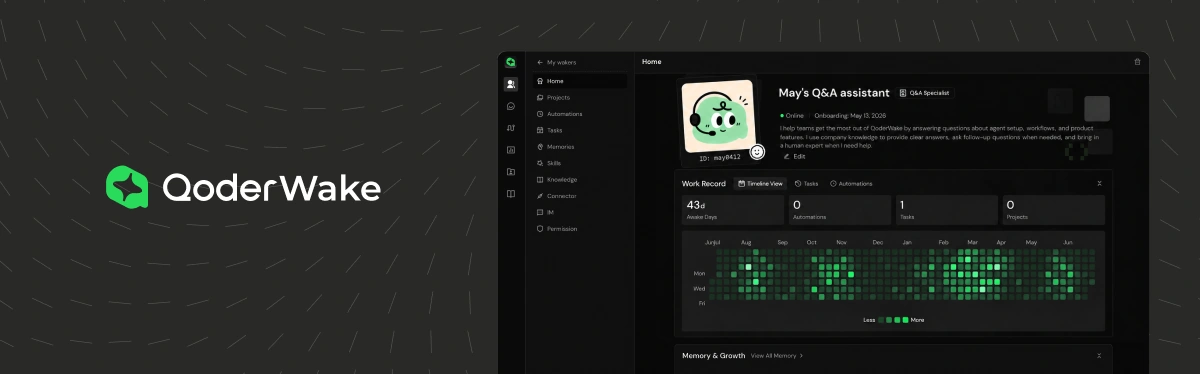
QoderWake: Standardizing Agent Workflows for More Reliable Performance
Overview
Overview
QoderWake: Autonomous Role-Based AI Coworkers
QoderWake is Alibaba Cloud’s platform for autonomous, role-based AI agents that work 24/7. Teams connect agents to company knowledge, tools, and group chats so they can handle ongoing work. Existing roles include backend engineer, UI/UX designer, marketing specialist, and QA engineer.
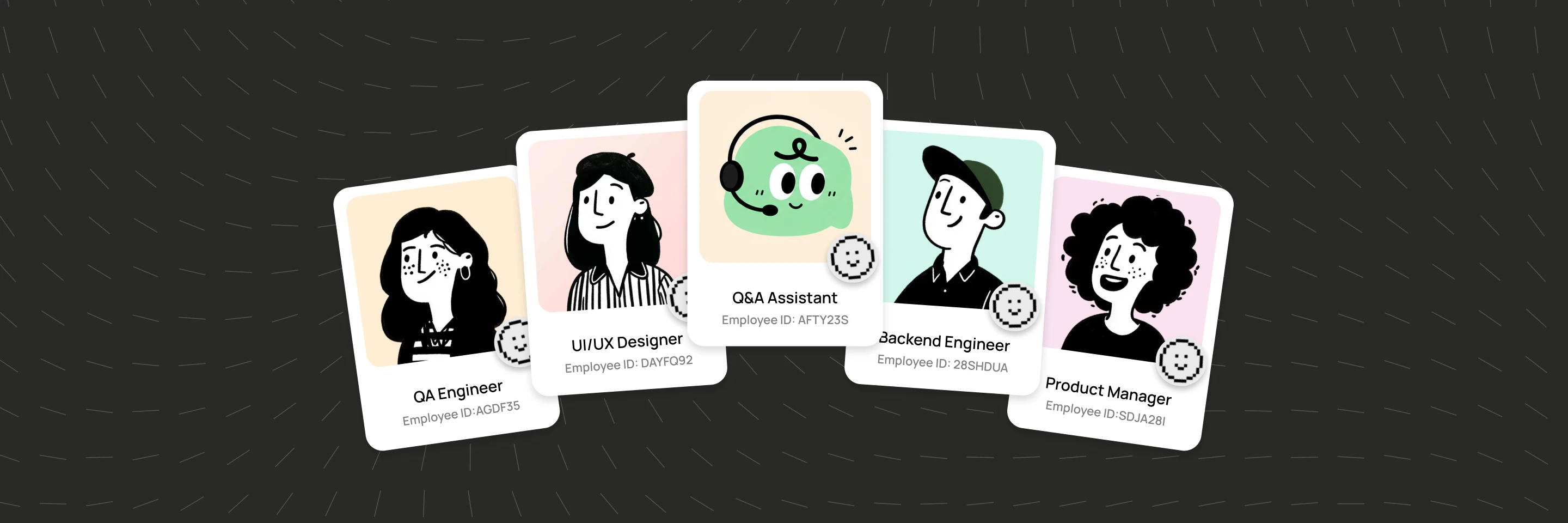
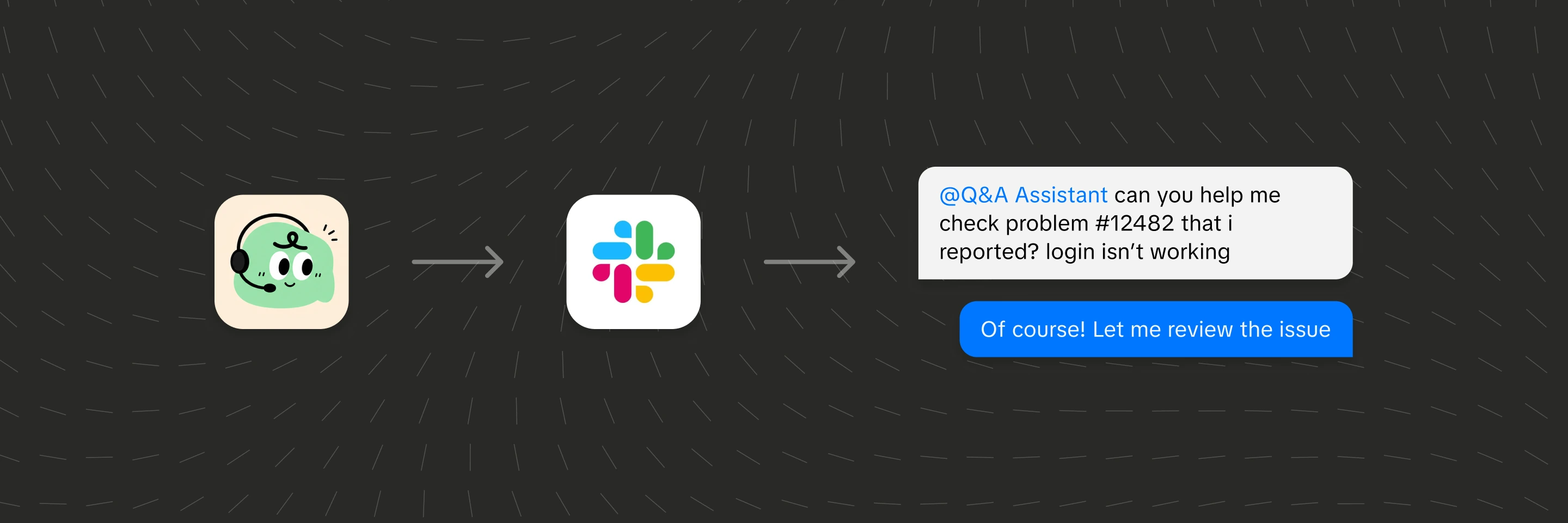
My challenge was to design the experience for a new role, the Q&A Assistant, making it easy for teams to get started and stay in control. I led research and design, drawing on 4,000+ responses from a survey sent to 80,000+ users and follow-up interviews. I also built the setup and workflow front end.
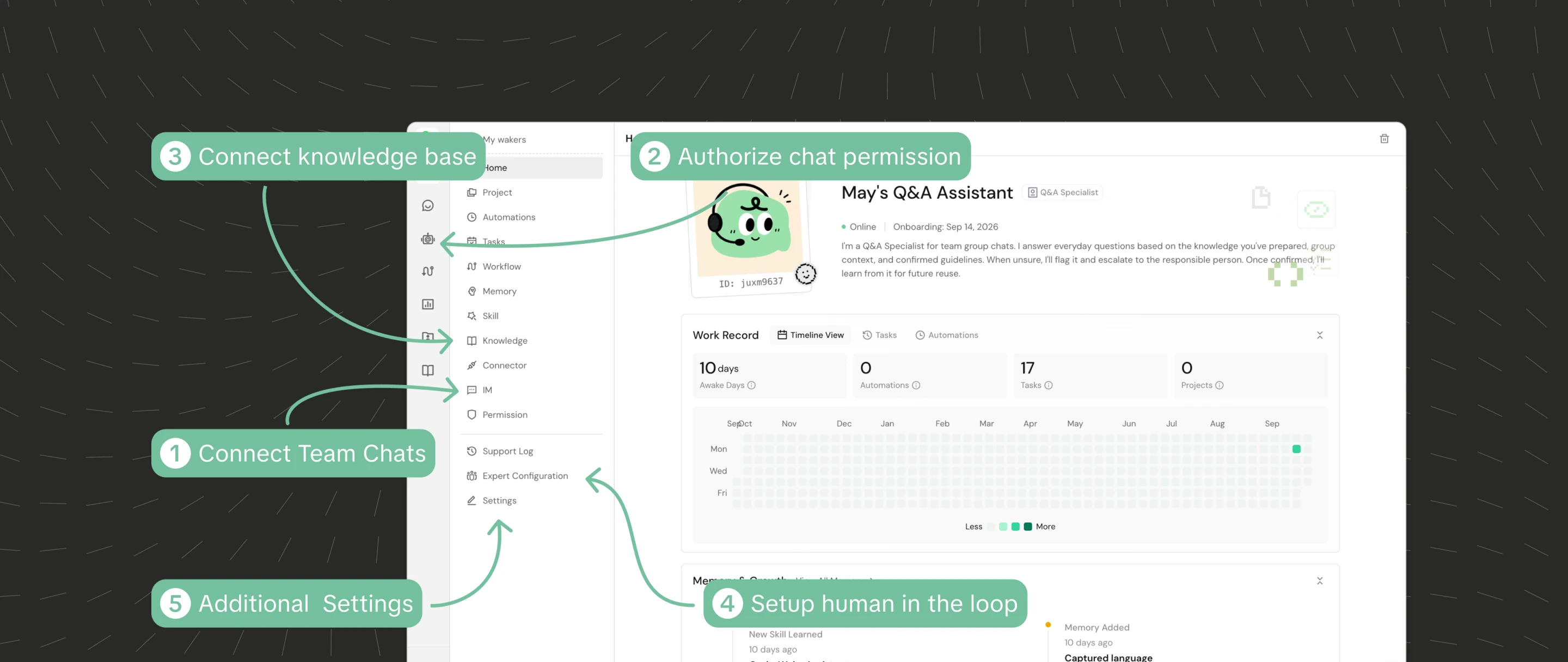
Two connected issues shaped my design. First, setup was difficult: teams had to connect chats, authorize permissions, add knowledge, and configure expert handoff across scattered settings. I needed to bring those steps into a clear path to activation.
Second, the workflow needed both structure and flexibility. I wanted teams to see how the agent worked and define the steps it should follow, while keeping those steps easy to adapt to each team’s needs.
Setup
Setup
From scattered settings to a guided setup
Getting started took more than 20 clicks, at least three redirects, and over 10 minutes on average. I wanted teams to see what was left to do without hunting through settings.
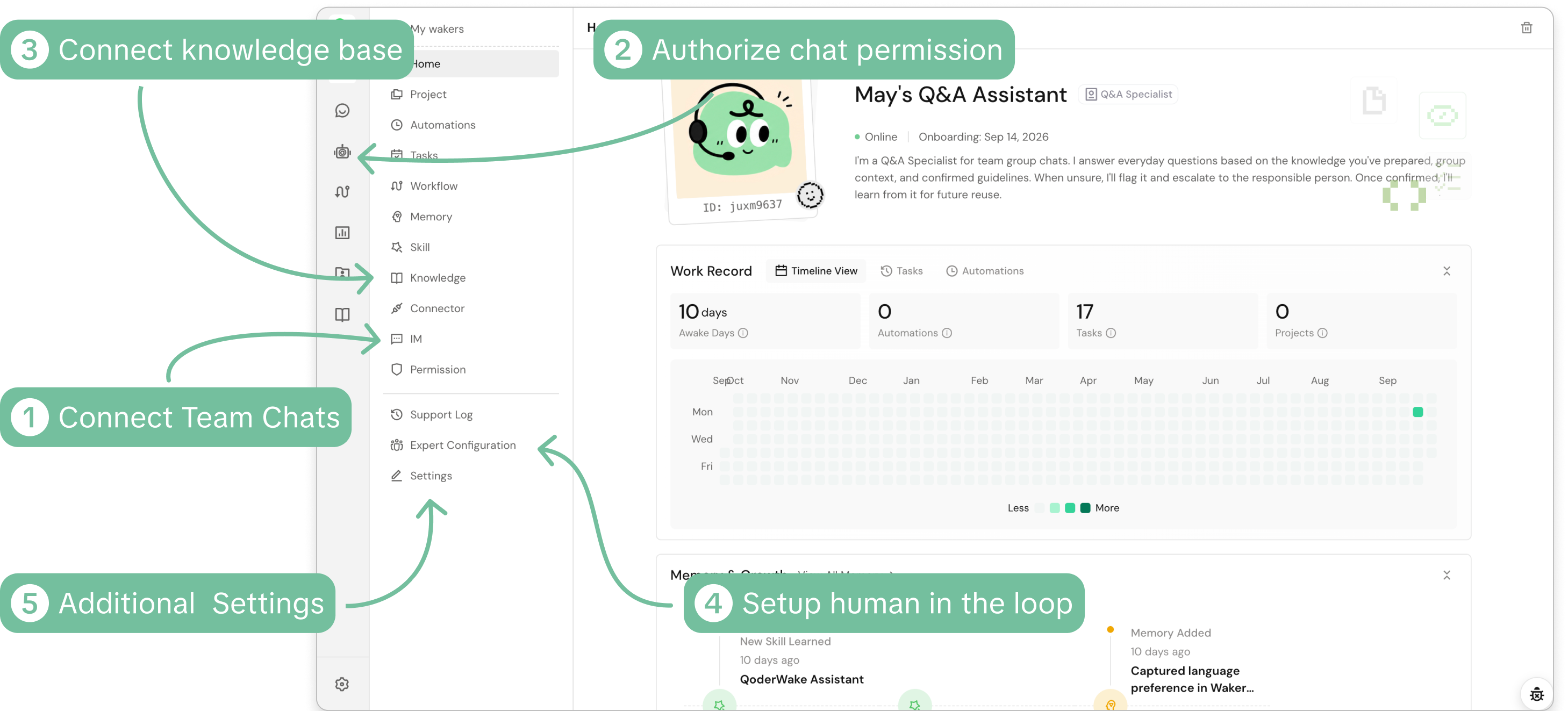
Choosing the setup format and entry point
I wanted to bring all the setup actions together, so I explored where setup should live and how to present it: a dedicated page or progress on the homepage.
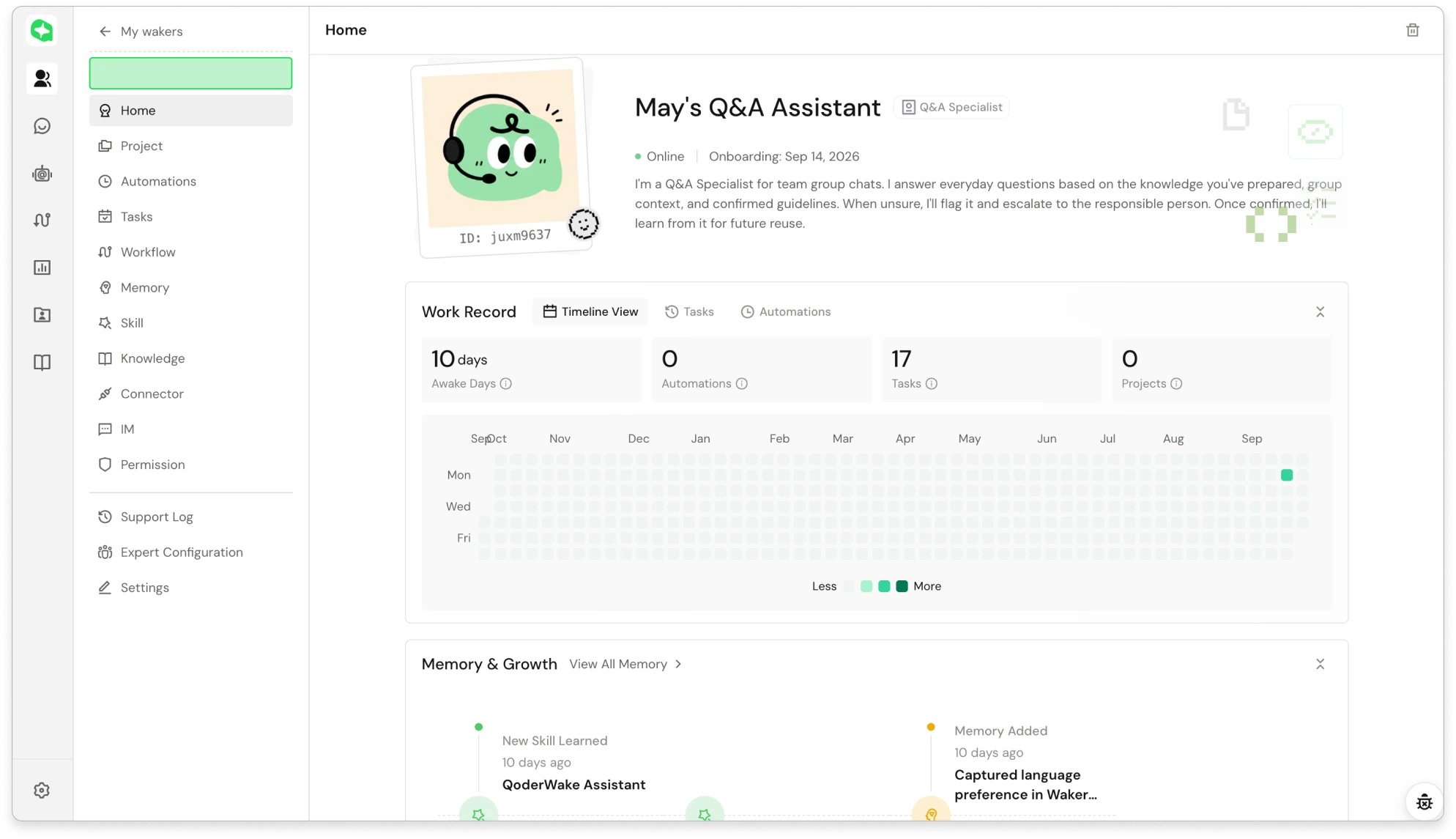
A dedicated setup page
A dedicated page gives setup room for detailed guidance. Placing it in the sidebar, however, adds a permanent navigation item for a mostly one-time task and keeps progress away from the homepage.
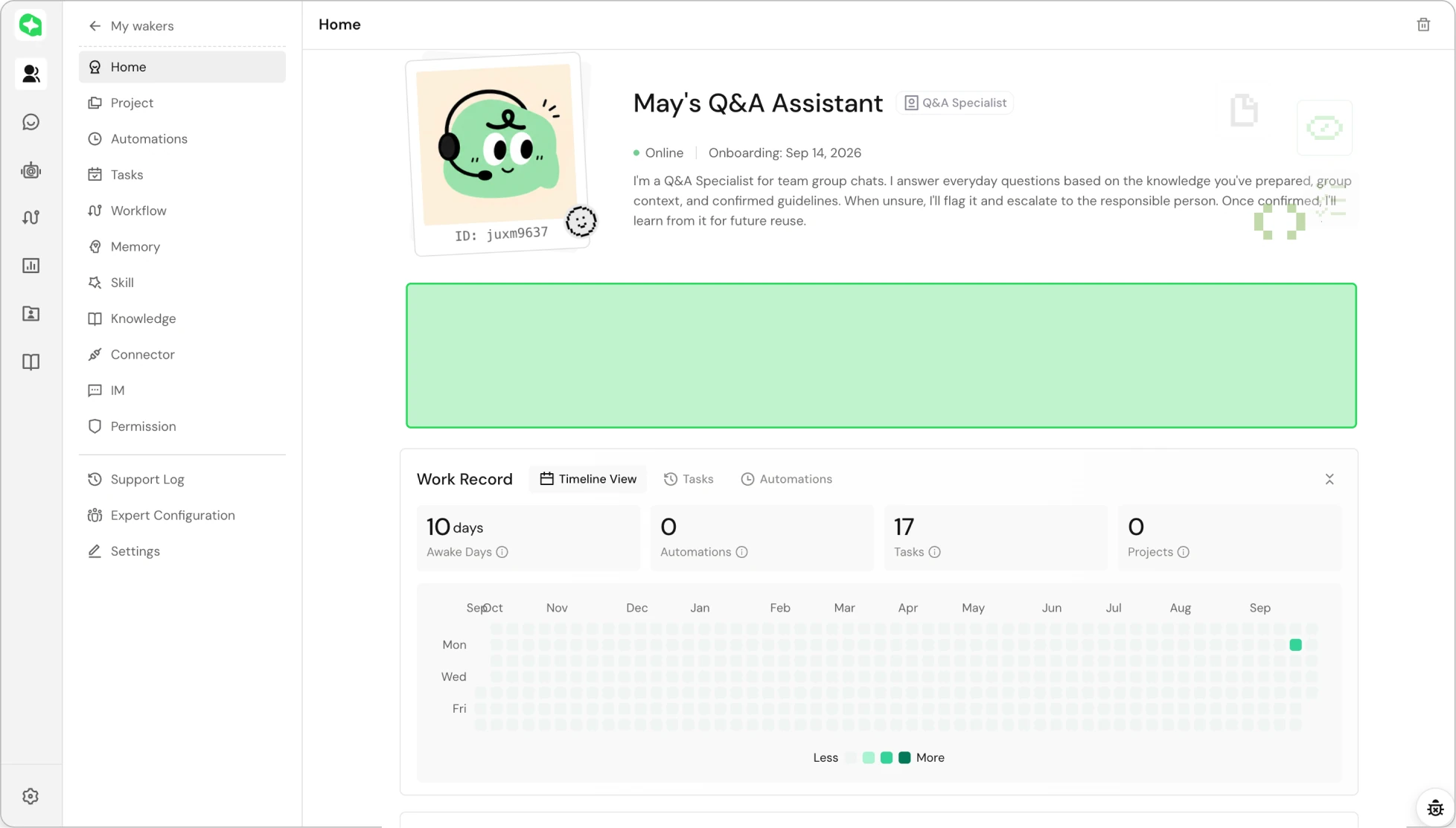
Homepage progress
Homepage progress makes unfinished setup visible where teams already work. It offers a clear entry point, but putting every configuration step here would crowd the page and compete with the assistant’s ongoing work.
I chose to combine both: a dedicated setup page in Quickstart, with an entry point in the homepage progress tracker. This brings the setup actions into one guided flow while keeping progress visible and easy to return to.
Workflow
Workflow
Building the editor changed the interaction
I compared instruction-based, document-based, and node-based approaches to make the workflow visible and adaptable.
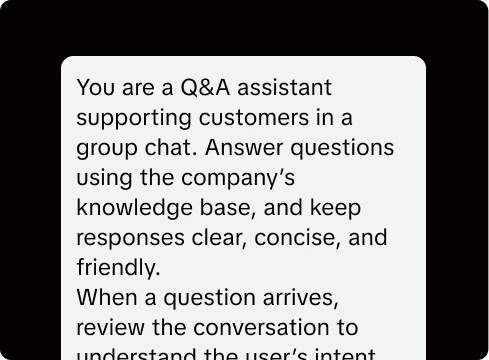
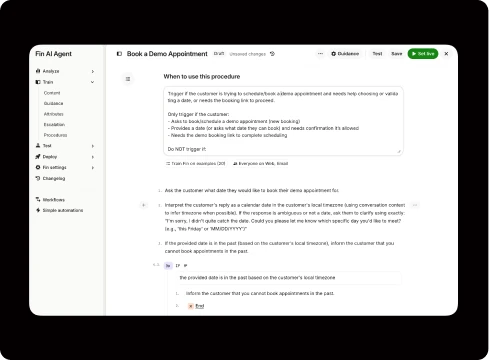
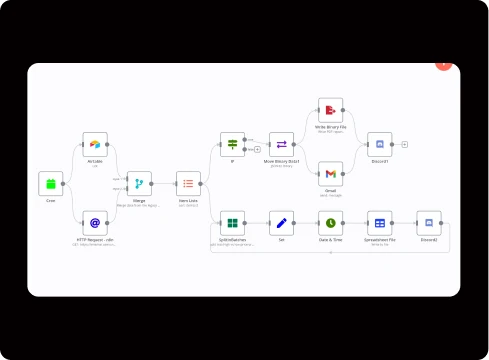
Nodes made the sequence, decision branches, and human handoffs visible at a glance. Each step could have its own model, prompt, and context, so teams could adapt one part without rewriting the whole process. Linking steps to execution records also made it easier to trace where an answer went wrong.
Implementing the drag-and-drop editor exposed edge cases and usability problems. I shifted the interaction toward natural-language editing and direct editing of each node, so users could make changes without relying on drag-and-drop.
Defining the human–AI boundary
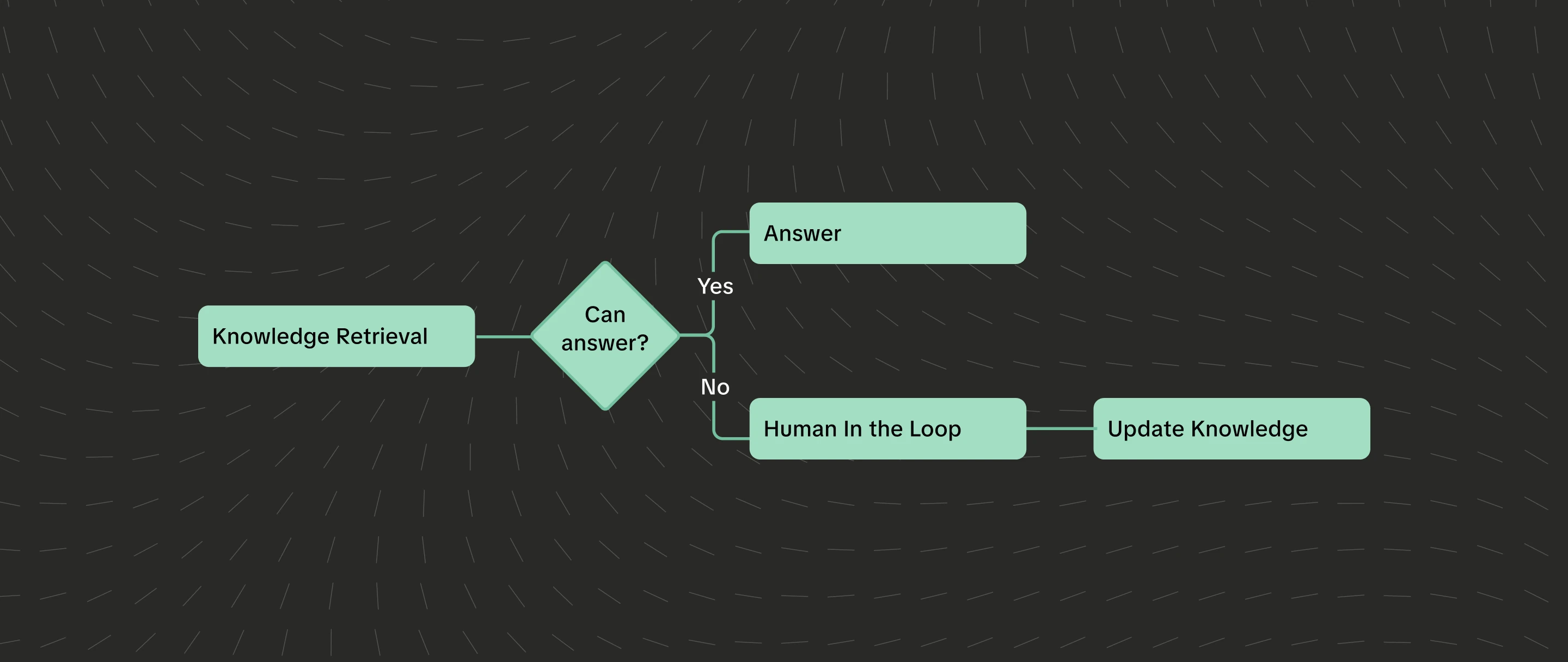
I defined the boundary between AI autonomy and human involvement: the assistant answers when company knowledge supports a reply, while teammates step in when it cannot answer or needs correction. Confirmed answers are saved to the knowledge base for future questions.
Works autonomously
- Find relevant company knowledge
- Answer questions using that knowledge
- Ask follow-up questions when context is missing
Human in the loop
- Answer when company knowledge doesn’t support a reply
- Correct an AI answer when needed
Runs automatically
- Save confirmed answers to company knowledge
- Keep answer and execution records
- Notify experts when help is needed
Choosing the right model for each step
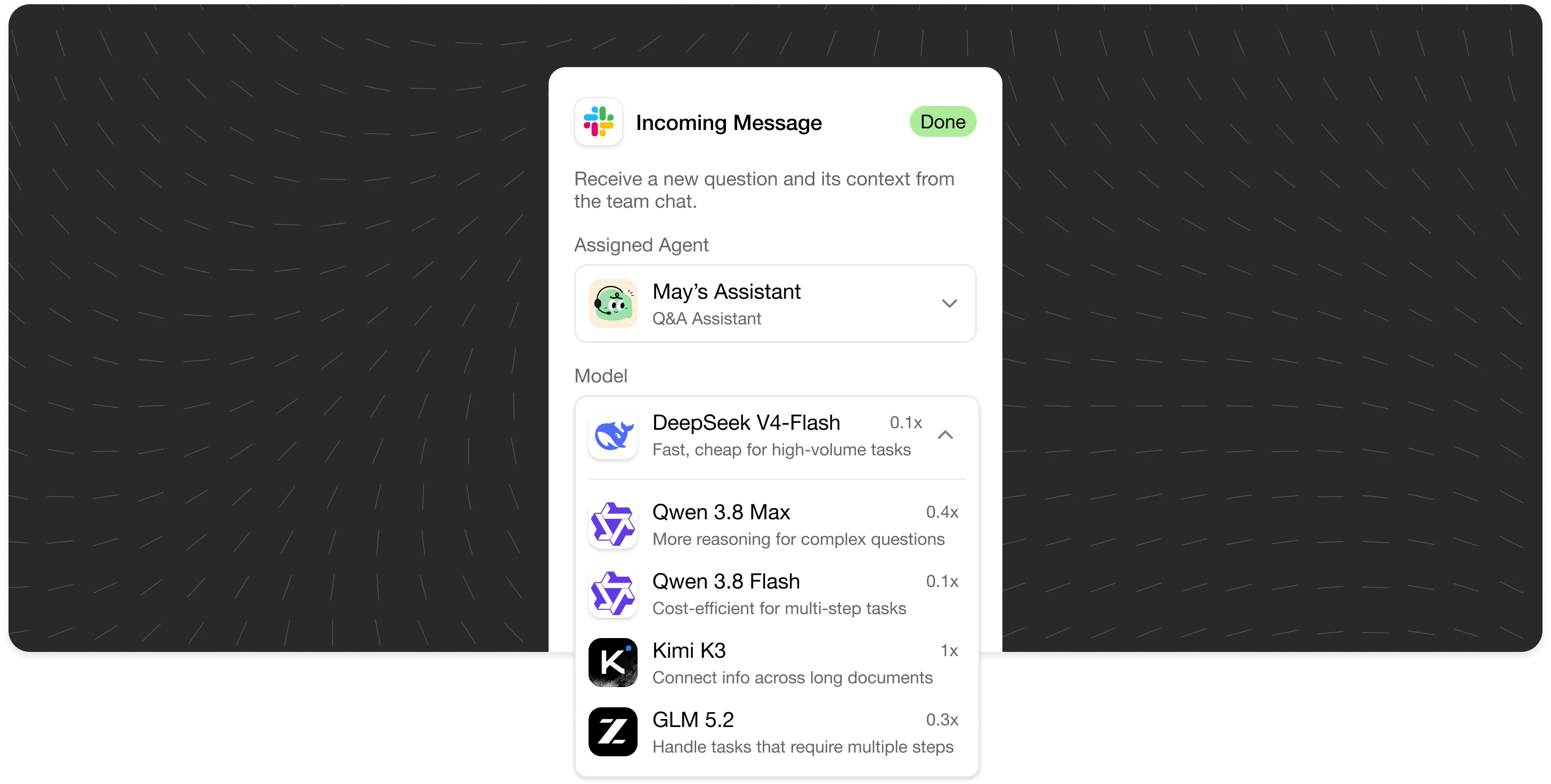
Users told us credits ran out too quickly. I made the model, prompt, and context configurable for each step, so teams could use cheaper models for routine work and reserve stronger ones for harder questions.
Tracing an answer back to its workflow
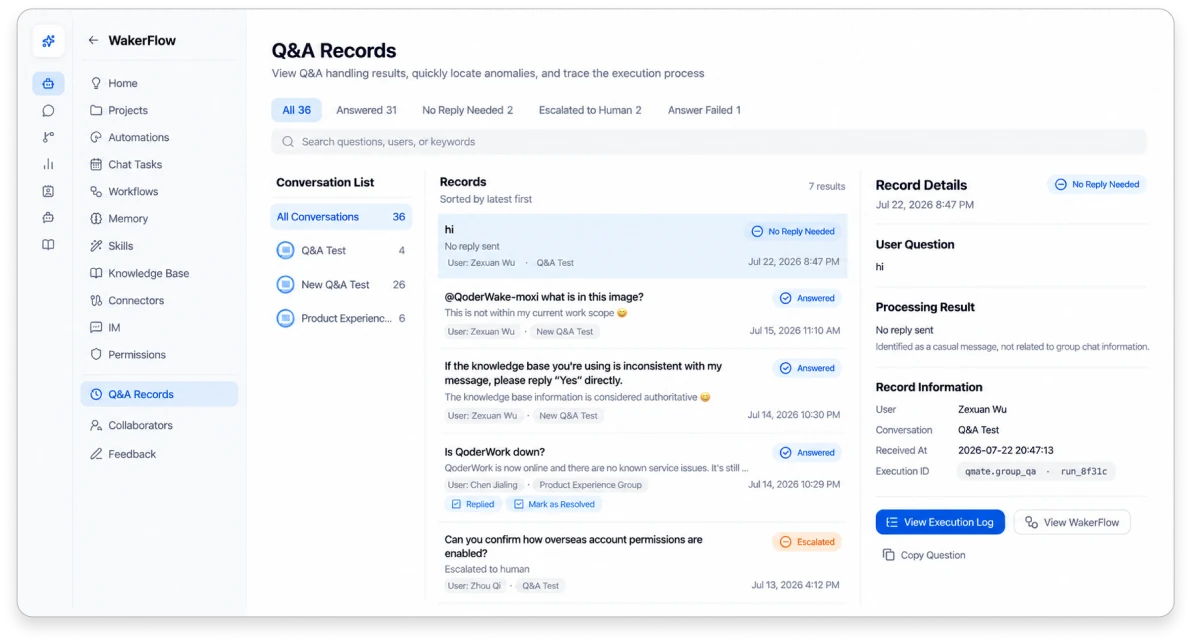
In interviews, teams told me they needed transparency to troubleshoot and evidence to understand what went wrong. I designed Q&A records that link each answer to its workflow run, so teams can inspect each step’s inputs, outputs, and status.
Outcomes
Outcomes
What happened after launch
In the first three months, the Q&A Assistant reached 100,000+ users and supported 86,000+ conversations.
- Users reached
- 100,000+
- Conversations supported
- 86,000+
- Replies delivered without error
- 99.9%
From design to a working product
I designed and built the setup and workflow front end, carrying the interaction decisions through to implementation. The resulting editor combined a visible workflow with natural-language editing and individual node controls, giving teams different ways to adapt their assistant.
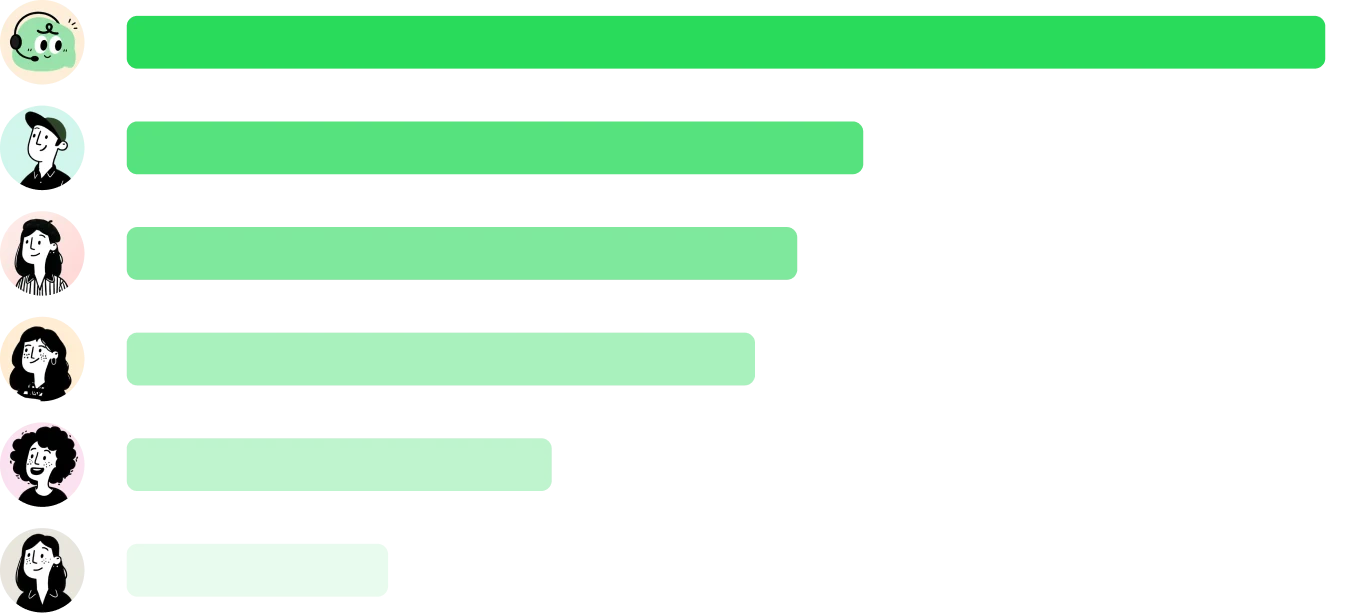
Within five days of launch, users created more than 1,000 Q&A Assistants, making it the most-created agent role on QoderWake. The product offers more than five roles; the chart below shows a selection.
Reflections
Reflections
What I learned
Simplify through subtraction
I learned to separate what users need to know from what they need to configure. Keeping progress visible and revealing details only when needed gave the setup experience a clearer focus.
Design the handoffs
A dependable AI experience needs a clear path for uncertainty. Designing the handoff to human experts, along with visible stages and traceable runs, made it easier to understand where an answer came from and when to intervene.
Follow through to delivery
Working across design and engineering helped me connect interface decisions to implementation constraints. Following the work through delivery reinforced the importance of carrying the design intent into the details of the shipped experience.
Beyond the internship
Fitting into the existing design system was a priority, but I saw room to improve the visual design and make information easier to understand. With more room to explore, I wanted to bring settings and permissions directly into the flow so users could make changes without jumping between pages.
Here’s the interactive prototype I redesigned. Try clicking “Run” or expanding each node to explore.